
[:en][:]
How to Transfer Linkcards to Another Account (New Linkcard Feature)
How to Transfer Linkcards to Another Account (New Linkcard Feature)
Digital asset management requires increasing flexibility, especially when teams, agencies, or different managers within an organization are involved. In this context, Linkcard incorporates a new feature that allows Linkcard Pages created within Business Cards, Micro Landings, and Link in Bio to be transferred to another account.
What does this new feature allow you to do?
The new transfer option allows Linkcard Pages created within the following categories:
• Business Cards
• Micro Landings
• Link in Bio
To be sent or transferred to another Linkcard account (To clarify further, this refers to transferring Linkcards to another paid account created by the same entity or company, but under a different user and password) to be used, edited, or managed by another user.
This means that a complete Linkcard, including its content and design, can be reused directly in another Linkcard account, maintaining consistency and saving considerable implementation time.
Step by step: How to transfer a Linkcard Page
The process is quick and easy. Here are the full details:
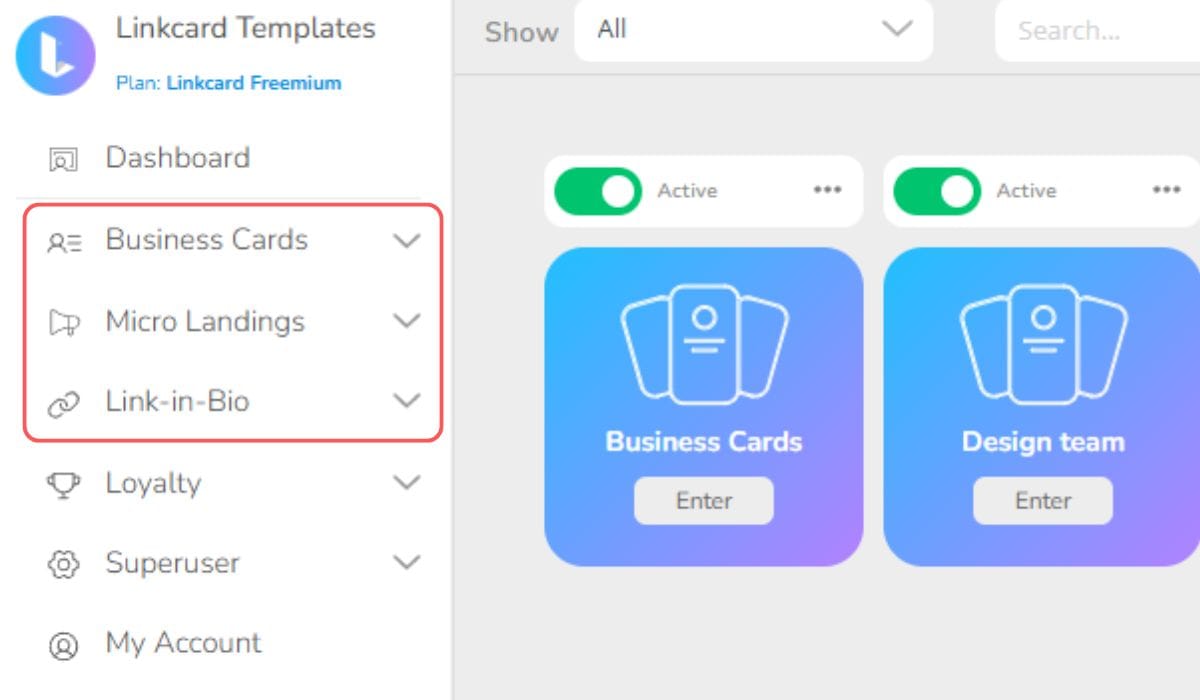
1 – Access the resource you want to transfer
Go to the corresponding section (Business Cards, Micro Landings, or Link in Bio).
2 – Select and click on “Transfer.”
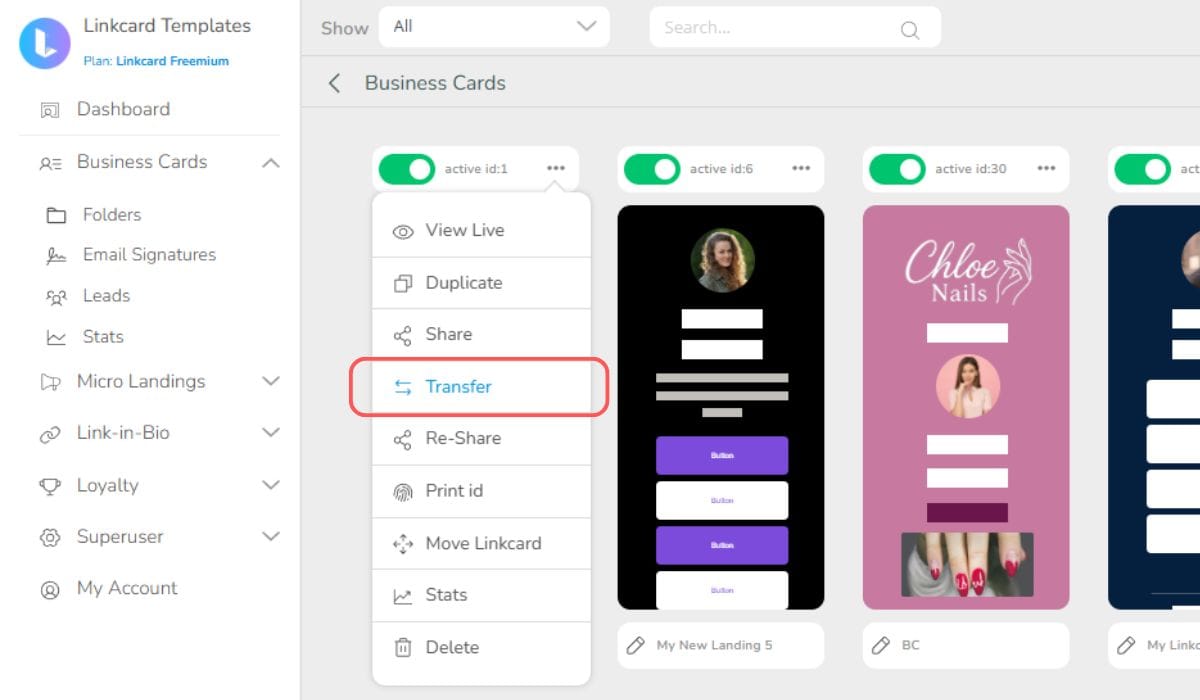
Select the Linkcard Page you want to send and, within the resource configuration panel, click on the three dots to find the “Transfer” option. Click there to start the process.
3 – Add the email address
Enter the email address of the recipient to whom you wish to send the Linkcard Page.
Verify that the email address is correctly written to avoid errors.
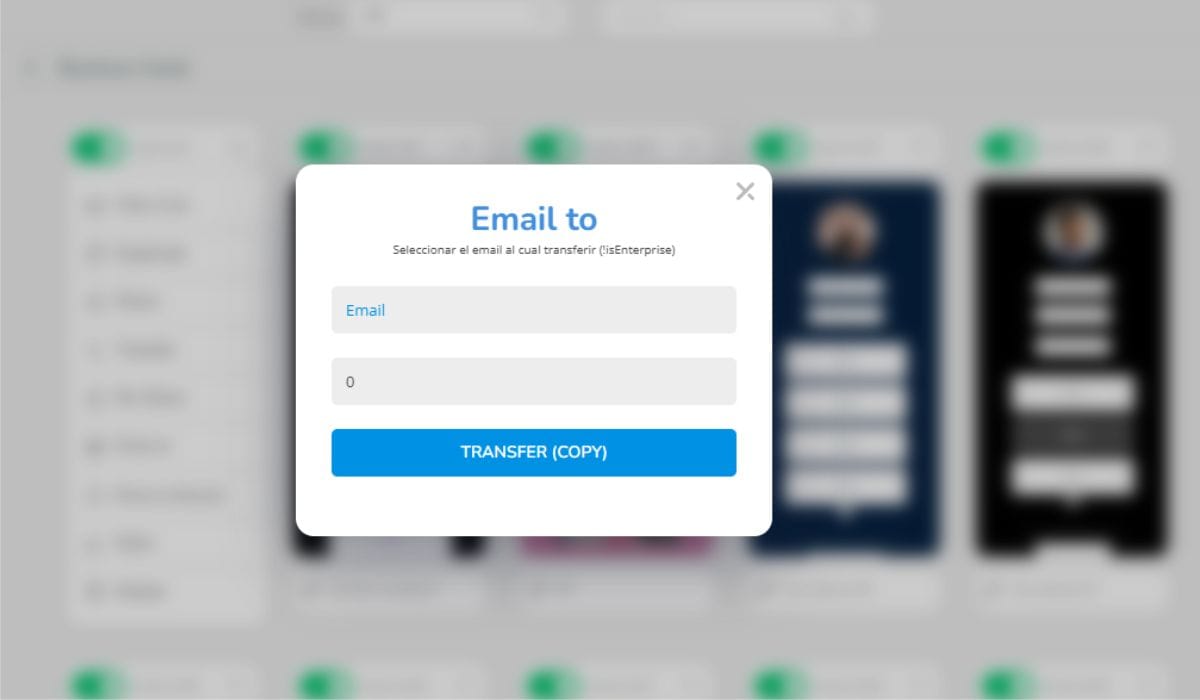
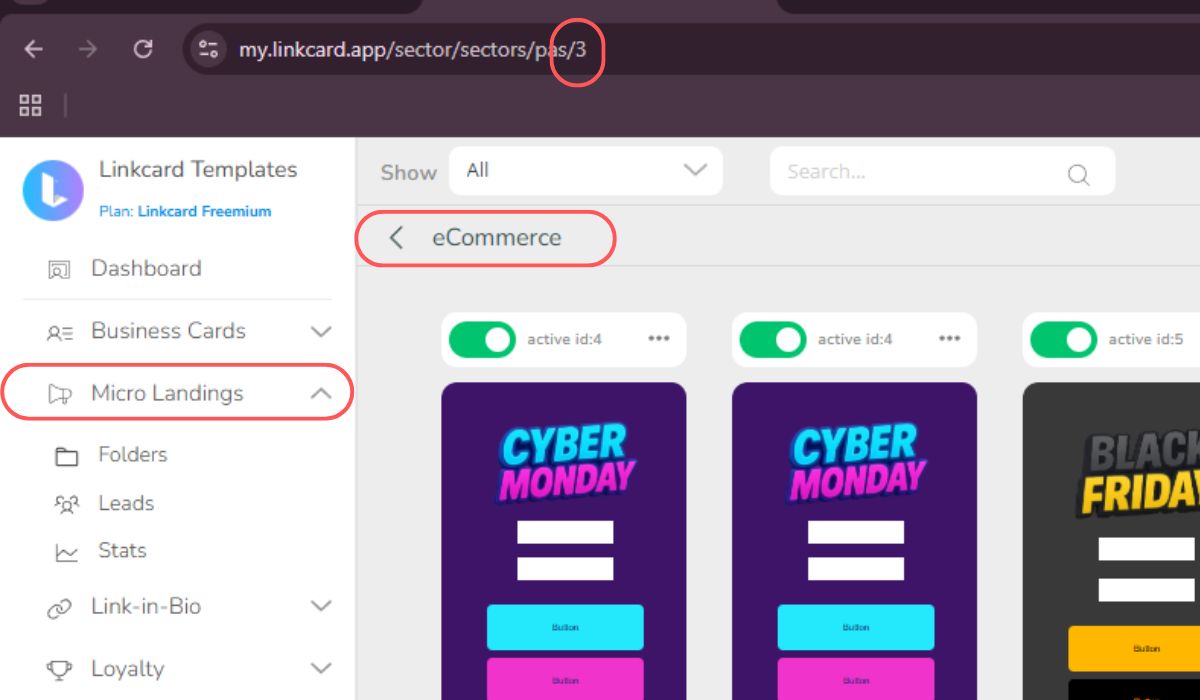
The second field must be completed with the destination folder number, which can be found in the URL of the Linkcard when it is opened in your browser. See an example in the image below:
4 – Confirm the transfer
Once confirmed, the destination account and folder will receive the Linkcard page.
5 – When the person receives the Linkcard page:
* They can move it
* Save it in another folder
* Reorganize it according to their internal structure
* Edit it and adapt it to their needs
This helps maintain order and control within the workspace.
Use Cases
High-impact use cases for the Linkcard transfer feature
Sales team enablement
Marketing teams can create ready sales toolkits including digital business cards, product pages, brochures, and demo booking pages and transfer them directly to each salesperson’s Linkcard account. Each salesperson only updates their personal details while branding and content remain standardized.
Companies with affiliates or branches in different regions or countries
Headquarters can distribute standardized Linkcards such as corporate micro-sites, local branch pages, product pages, event pages, or support pages to regional teams. Each branch only localizes language, contact details, and promotions while maintaining consistent branding.
Digital marketers, solopreneurs, and digital nomads
Freelancers and consultants can create Link in Bio pages, micro landing pages, lead generation pages, or portfolio pages and transfer them to their clients’ Linkcard accounts for easy management.
Franchise networks
Franchisors can provide ready-to-use marketing pages such as local store pages, appointment booking pages, promotional pages, loyalty programs, and customer review pages to franchisees.
Distributor and reseller networks
Manufacturers can distribute product pages, demo request pages, technical documentation, and marketing materials to their distributors through ready-made Linkcards.
Corporate onboarding for employees
HR or marketing departments can deliver digital business cards, onboarding pages, internal resource pages, and training materials to new employees’ Linkcard accounts.
Affiliate and influencer marketing programs
Brands can create campaign-specific Link in Bio pages with pre-configured affiliate links and transfer them to influencers and partners to ensure consistent messaging and tracking.
Event organizers and speakers
Organizers can distribute speaker profiles, event agendas, exhibitor pages, digital booths, and lead capture pages to speakers and exhibitors.
Professional portfolios and personal branding
Consultants, creators, coaches, and digital nomads can build reusable templates for portfolios, personal websites, service pages, or Link in Bio profiles and easily duplicate them across accounts.
Rapid marketing campaign deployment
Marketing teams can quickly deploy promotional landing pages, product launch pages, or seasonal campaign pages and transfer them to regional teams, partners, or affiliates for immediate use while keeping full brand consistency.
Best practices when using transfer
To get the most out of this feature, we recommend:
• Creating well-structured base templates before transferring
• Verifying links and specific settings in the destination account
• Establishing internal criteria for which elements are customizable
• Maintaining clear naming conventions to facilitate version identification
These practices help maintain order and consistency in collaborative environments.
Conclusion
The new functionality for transferring Linkcard Pages within Business Cards, Micro Landings, and Link in Bio represents a significant advance in collaborative management within Linkcard.
By allowing digital assets to be moved between accounts, processes are optimized, operational efficiency is improved, and teamwork is facilitated. This tool responds to the real needs of agencies, companies with multiple units, and sales teams seeking agility without losing consistency.
In an environment where organization and scalability are essential, having mechanisms that simplify digital management is key to sustaining growth and brand consistency.
Share this on:
Continue reading

Boost Your Marketing with Linkcard’s Interactive Email Banners
Email marketing has long been a staple for businesses seeking to connect with their audience and effectively promote their products or ...

Linkcard for Email signature marketing
After you’ve designed and created your Digital Business Card or other templates you can turn them into an email signature with a simple...

How to use guerrilla marketing with Linkcard’s mobile-first sites?
The markets are getting more competitive each year, with new business products, ideas, and players entering at a quicker pace.Having yo...

Linkcard for File Sharing
Linkcard simplifies the cumbersome process of file transfers.In today’s fast-paced digital world, efficient file transfers have become ...

Linkcard for Real Estate
Real estate cards are a great digital marketing tool that powers your communication. You can reach more people through search engines a...

How to use your Linkcards with QR codes
In the digital age, where time and attention are at a premium, QR codes have become an effective bridge between the physical and digita...

What type of website builder is best for you?
Not long ago you needed to have experience and knowledge in web development or coding in order to go live with a website.Now, thanks to...

Job hunting with Linkcard
Create microsites for resumes, CVs, and portfolios. Imagine having all your work information in one digital home, easy to access, edit ...

5 ways to generate real estate leads with digital marketing tools
Being a good real estate agent or managing an agency has gotten more complicated as the market has advanced.With increasing participant...

Benefits of Linkcard Pro vs Freemium
Linkcard’s microsite and digital marketing platform have many uses and different formats available to users.So, how can you decide what...

Linkcard for Designers & Marketers
How can designers and marketers create portfolio websites easily? With Linkcard!
We had our own design team and developers create a se...
Promo Kit Files
Download our pre-designed files and start promoting your program.Below, we provide you with our pre-designed files for you to adapt to ...

Boost sales with Linkcard
In the dynamic world of modern networking and sales, traditional paper business cards are being replaced by innovative digital alternat...

Synchronize Gsuite with your Linkcard email signatures
Learn how to sync your G Suite account with our email signatures and bannersShare this on

QR Codes
In an era marked by technological advancements and the need for seamless connectivity, QR codes have emerged as a versatile tool cateri...

How to build an online store with Linkcard in just minutes
If you have or want to start, a small business then you have probably asked yourself: how to build an online store quickly, with no has...

How to leverage Artificial Intelligence to create your loyalty program
In an increasingly competitive market, customer loyalty has become one of the key strategies for ensuring the sustained growth of any b...
How can tech tools help me use my time better?
Technology has changed almost every aspect of modern life, from connecting us to the people we love most in different ways to maximizin...

How to use Linkcard to build customer loyalty and create a food community through subscriptions
The restaurant industry is characterized by fierce competition, constantly changing consumer habits, and a strong dependence on repeat ...

Shortcut to your Linkcards in iPhone
Find out how to generate a shortcut to your Linkcards using the Safari browser on your iphone.Share this on