
[:en][:]
New feature in Linkcard: how to transfer templates and cards to another account
New feature in Linkcard: how to transfer templates and cards to another account
Digital asset management requires increasing flexibility, especially when teams, agencies, or different managers within an organization are involved. In this context, Linkcard incorporates a new feature that allows templates or cards created within Business Cards, Micro Landings, and Link in Bio to be transferred to another account.
What does this new feature allow you to do?
The new transfer option allows a template or card created within the following categories:
• Business Cards
• Micro Landings
• Link in Bio
to be sent or transferred to another Linkcard account to be used, edited, or managed by another user.
This means that a design that has already been developed—with its structure, links, and configuration—can be reused directly in another environment, maintaining consistency and saving implementation time.
Step by step: How to transfer a template or card
The process is quick and easy. Here are the full details:
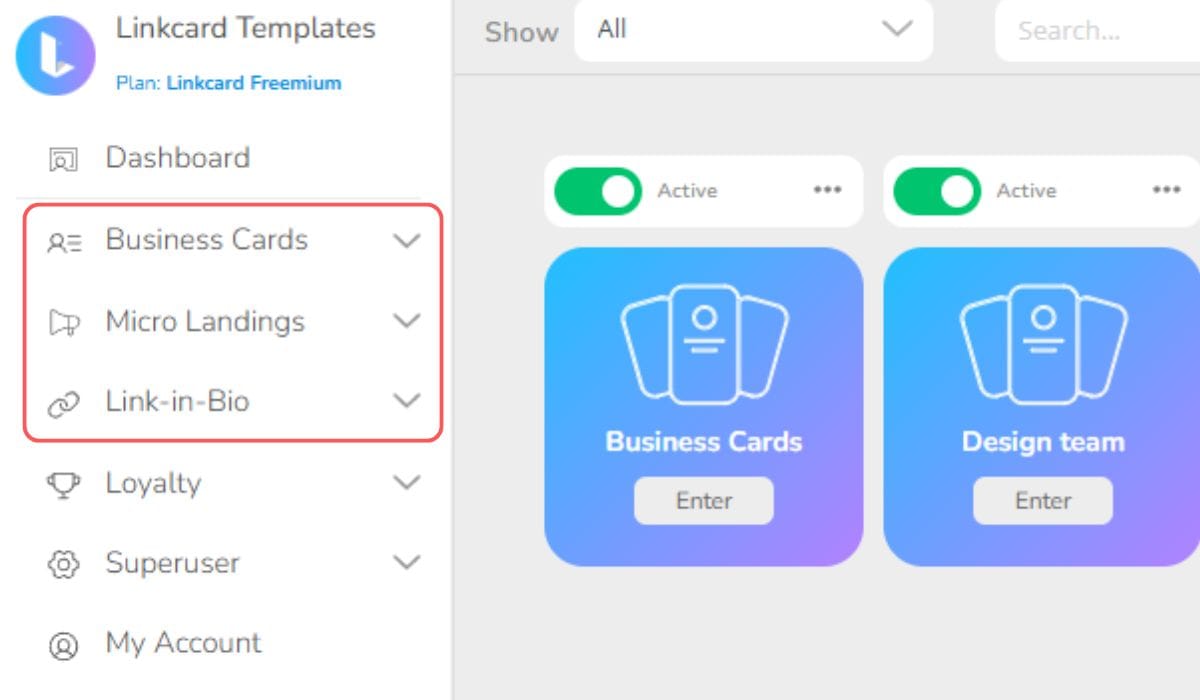
1 – Access the resource you want to transfer
Go to the corresponding section (Business Cards, Micro Landings, or Link in Bio).
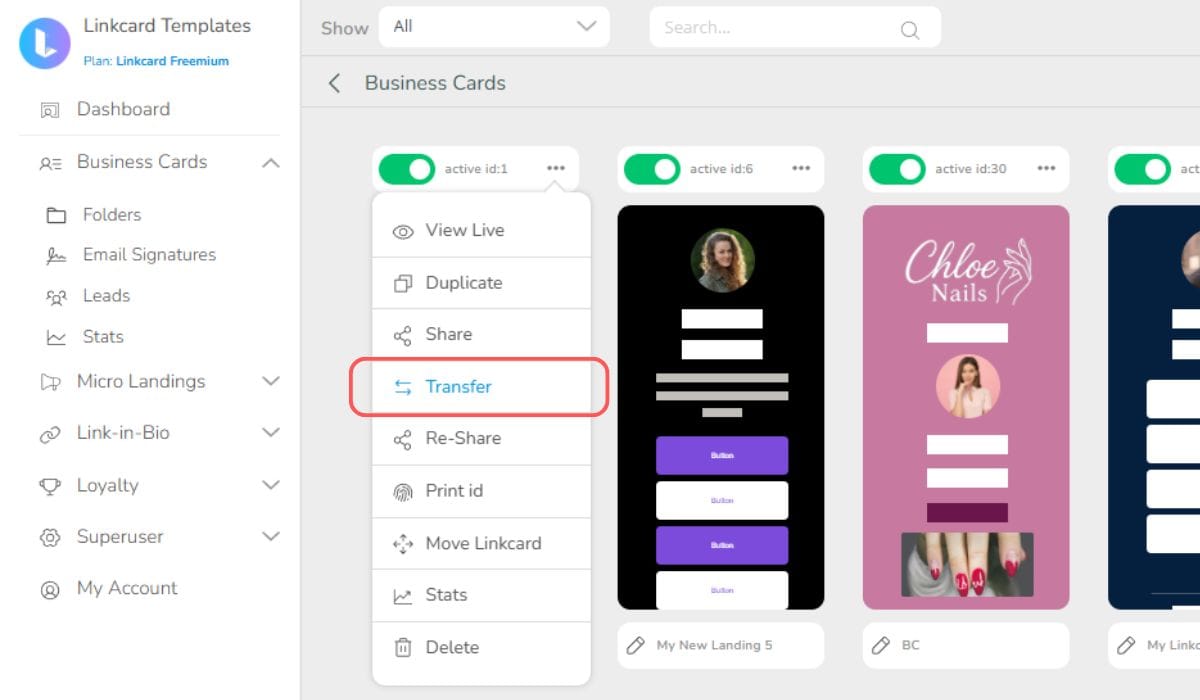
2 – Select and click on “Transfer.”
Select the card or template you want to send and, within the resource configuration panel, click on the three dots to find the “Transfer” option. Click there to start the process.
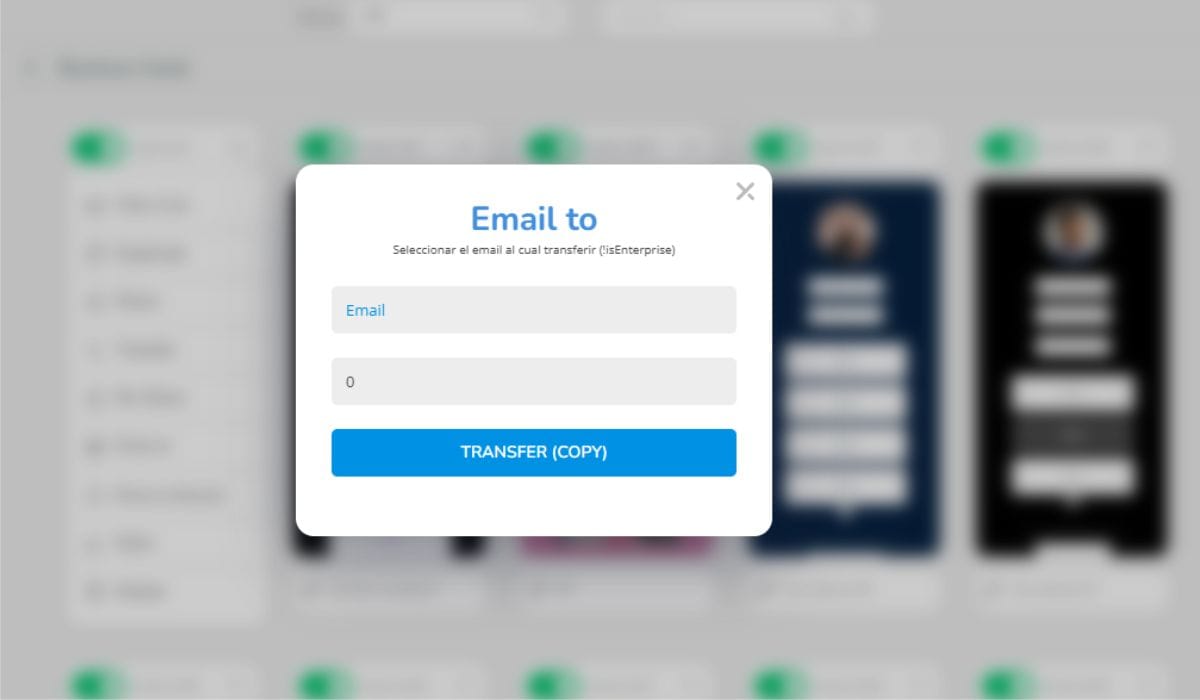
3 – Add the email address
Enter the email address of the recipient to whom you wish to send the template or card.
Verify that the email address is correctly written to avoid errors.
4 – Confirm the transfer
Once confirmed, the other account will receive the transfer of funds.
5 – Reception and organization in the destination account
When the person receives the template or card:
• They can move it
• Save it in another folder
• Reorganize it according to its internal structure
• Edit it and adapt it to their needs
This allows you to maintain order and control within the work panel.
Why is this functionality key?
The ability to transfer cards or templates makes it easier to:
• Standardize brand identity across large teams
• Share approved designs with distributors or branches
• Deliver digital assets to clients from agencies
• Save time on repetitive design processes
• Scale operations in an orderly manner
This has a direct impact on productivity and brand consistency.
Best practices when using transfer
To get the most out of this feature, we recommend:
• Creating well-structured base templates before transferring
• Verifying links and specific settings in the destination account
• Establishing internal criteria for which elements are customizable
• Maintaining clear naming conventions to facilitate version identification
These practices help maintain order and consistency in collaborative environments.
Strategic advantages
This functionality not only saves time, but also allows you to:
• Standardize processes
• Reduce design errors
• Improve implementation speed
• Facilitate networking
• Scale business structures
It makes the platform an even more collaborative tool.
Conclusion
The new functionality for transferring templates and cards within Business Cards, Micro Landings, and Link in Bio represents a significant advance in collaborative management within Linkcard.
By allowing digital assets to be moved between accounts, processes are optimized, operational efficiency is improved, and teamwork is facilitated. This tool responds to the real needs of agencies, companies with multiple units, and sales teams seeking agility without losing consistency.
In an environment where organization and scalability are essential, having mechanisms that simplify digital management is key to sustaining growth and brand consistency.
Share this on:
Continue reading

QR Codes
In an era marked by technological advancements and the need for seamless connectivity, QR codes have emerged as a versatile tool cateri...

Going digital on Business Cards?
The single most important moment of a business encounter has always been the handshake (and/or a kiss) followed by the handing of a pap...

How digital business cards can change the way you connect to clients
Technology has reinvented everything from the way we order food to how we get information and especially how we connect.Networking and ...

How to Define and Use Reward Levels in Your Loyalty Program
Through reward levels, businesses can offer differentiated benefits to encourage greater participation and loyalty.How to Define an...

Linkcard for Influencers
Linkcard has all the tools you need to boost your social media profiles and improve your reach. Influencer marketing is a growing indus...

How to create amazing interactive digital happy holiday cards
The holiday cards are a great format to get your message across, from personal to business.Tis’ the season for holiday cheer and connec...

Linkcard for Small business
What are business mobile sites and microsites? Linkcard was founded under as a no-code, mobile-first microsite builder, what does all t...

How to use your Linkcards with QR codes
In the digital age, where time and attention are at a premium, QR codes have become an effective bridge between the physical and digita...

Digital Business Cards under Evaluation
We are thrilled to share this exhaustive investigation work realized by “Elena Carré Otero“, a digital expert from Spain which compares...

What are Leads and how to generate them?
Companies invest time and money to win new customers, at Linkcard.app we are experts in lead generation and we will tell you how we can...

How to increase engagement with your loyal customers
In an increasingly competitive market, having loyal customers is no longer enough: the key is to get those customers actively involved ...

How to use Linkcard at parties to boost offers, communication, and conversions
The holidays represent one of the busiest times of the year in terms of digital communication.
Brands, entrepreneurs, and professional...

Synchronise emails signatures with your team
Learn how to synchronise your email signatures across work teams in just a few steps.Share this on

A complete tool for digital marketing
Linkcard is on the news a top-of-its-kind no-code website builder with hundreds of benefits and immense digital potential for users.o, ...

Testing to improve: how to use your Link in Bio for A/B testing
In the digital world, everything changes fast. What works today may not work tomorrow. That's why A/B testing is a key tool to optimize...

What are customer Loyalty Programs and why are they so important?
Customer loyalty programs are strategies focused on rewarding the preference of consumers who frequently buy from a business
What are ...

How to use Linkcard to build customer loyalty and create a food community through subscriptions
The restaurant industry is characterized by fierce competition, constantly changing consumer habits, and a strong dependence on repeat ...

How to use Linkcard to create mobile-born newsletter: guide and advantages
In the world of digital marketing and professional communication, it is essential to find tools that are agile, effective, and measurab...

New feature in Linkcard: how to transfer templates and cards to another account
Digital asset management requires increasing flexibility, especially when teams, agencies, or different managers within an organization...

Microsites for product launches
To get eyes on your new product you will need to have a website to host all the information about the launch and highlight what you hav...